How to read research papers on your phone
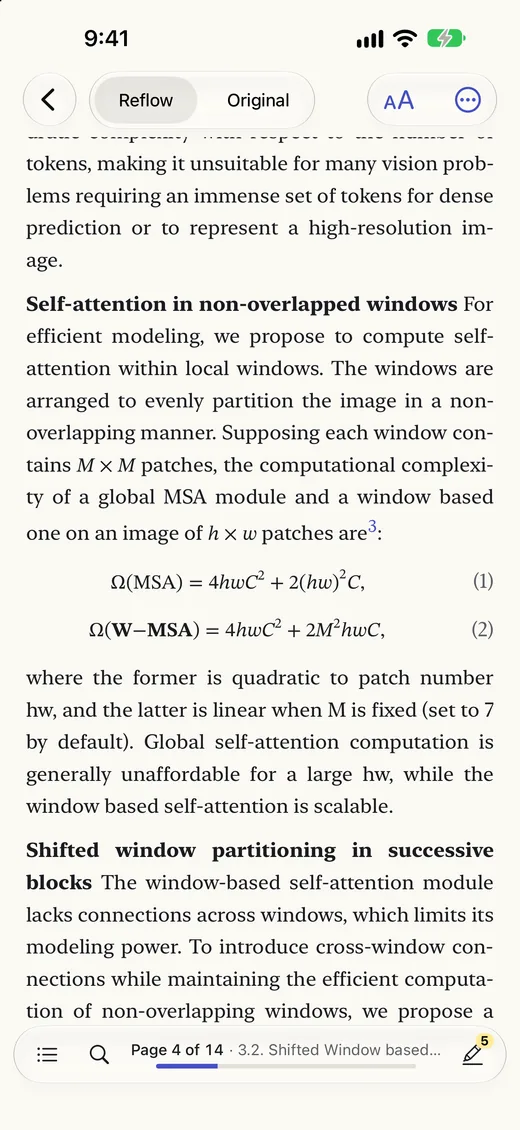
Research papers are typeset for print: two narrow columns of small type, equations, wide tables, figures and footnotes. That works on paper and is painful on a phone. Here is what makes papers hard on a small screen, and how to read one comfortably on an iPhone or iPad.
Updated November 15, 2026
Why papers are harder than other PDFs
- Two columns. Zoomed in, you read down one column, scroll back up, then read down the next, on every page.
- Small type. Papers are often set in 9 or 10 point type for a sheet of paper. Shrunk to a phone's width it's unreadable.
- Equations and tables. They can't simply wrap like text, and copying a paper's text out of the PDF usually garbles them.
- References. “Figure 3” or “[12]” sends you to another page, and finding your way back is the hard part.
Getting the paper onto your phone
In Unpage, tap + and choose Open a link. Paste a link to the paper's PDF, or to its arXiv abstract page: Unpage fetches the PDF for you. You can also choose a PDF you've saved in Files or iCloud Drive, or share one to Unpage from Safari or Mail.
The paper is readable within seconds. The careful conversion then runs on your iPhone, page by page, while you read.
Reading it
- One column, at your size. The paper reads in one column, in the typeface and size you choose. Running heads and page numbers are left out, and footnotes stay with their text.
- Equations as math. Equations are converted into real math, set the way they were printed, not pictures you have to zoom. A wide one scrolls sideways on its own.
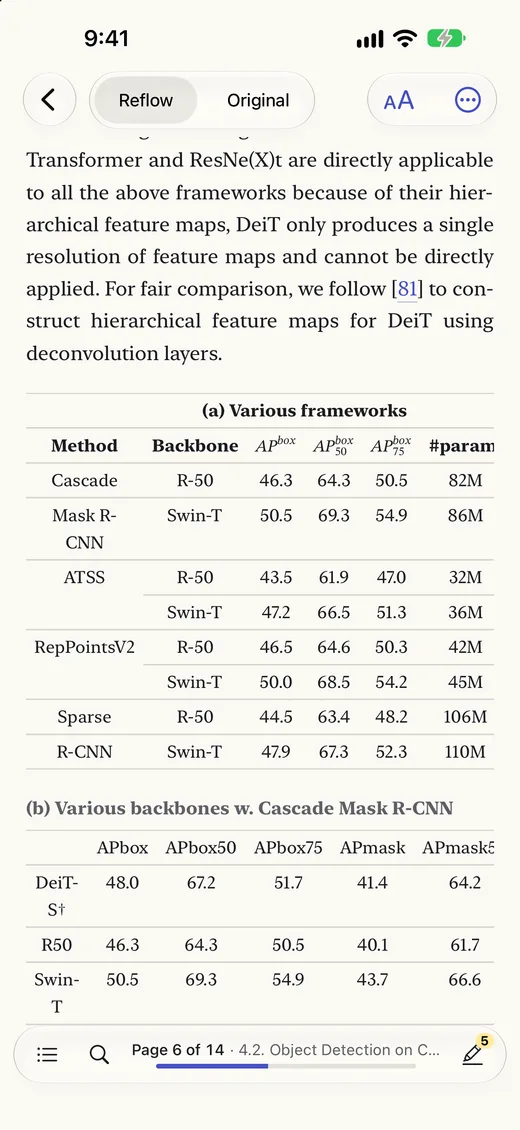
- Tables as tables. Tables keep their rows and columns. Tap a table or a figure to open it full screen, converted or as printed, and pinch to zoom.
- References you can tap. “Figure 2”, “Table 1”, “Eq. (4)”, “Section 3.2”, “[12]” and “(Smith et al., 2020)” become links. Tap one to see the figure or the reference in a sheet, then go there or stay where you are.
- Contents and search. Contents lists the paper's sections. Search finds a word anywhere in it.
Checking what you read
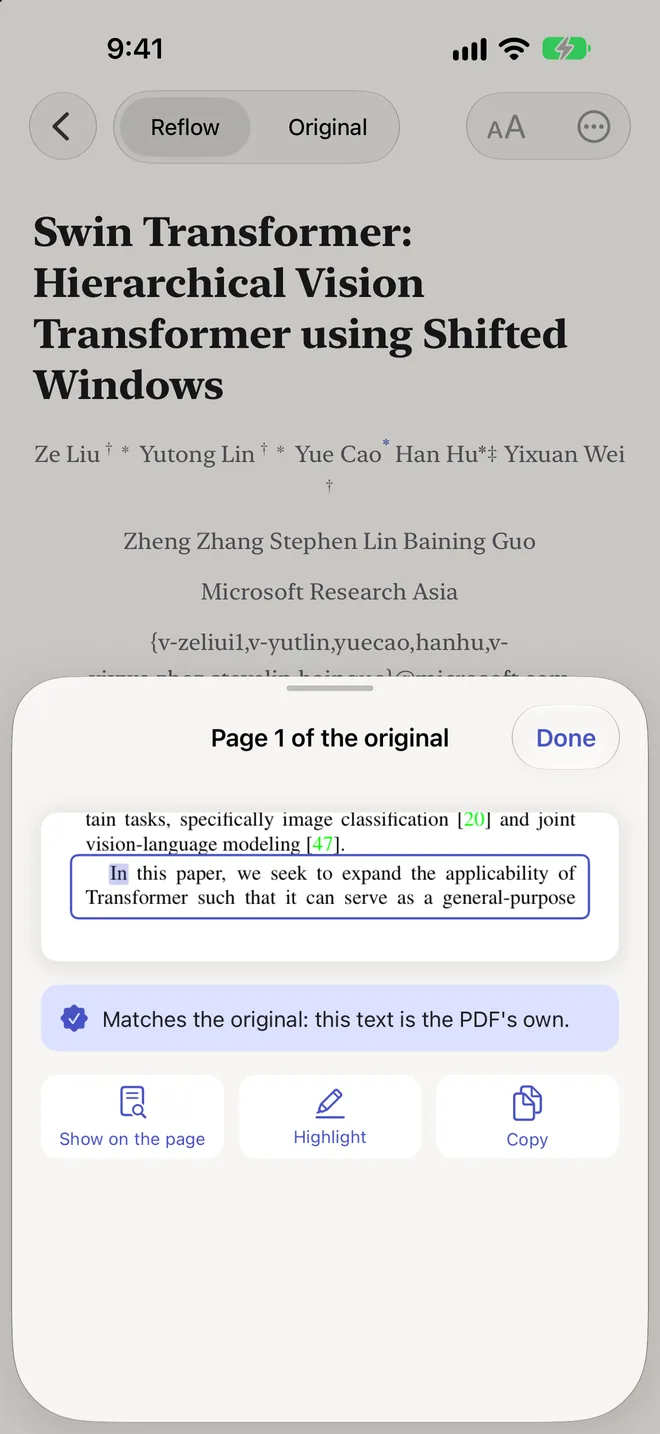
When you quote a number or an equation, it has to be right. Tap any paragraph to see it outlined on the original page, with a line saying whether it matches the PDF's own text. Passages Unpage couldn't confirm are marked in apricot, and Fix this corrects one if it came out wrong. On iPad and Mac, read the paper and the original side by side.
Highlights and notes
Select a sentence to highlight it in one of five colours and add a note. Highlights show on the original page too, and sync through iCloud with your reading position, so you can start a paper on your phone and finish it on a Mac. With Unpage Pro, export your highlights as text (Markdown) for your notes, or the PDF with your highlights and notes in it.
Tips
- Math-heavy papers: choose Most accurate in Settings › Conversion. It's already the default on devices with 8 GB of memory or more.
- Many papers: put them in collections, one per project or course, and search the text of every paper in your library at once.
- Reading at night: the Night theme, or Match system to follow your iPhone's dark mode.
- On an e-reader: convert the paper to EPUB for Apple Books, Kobo or Kindle.
- Any other PDF: handbooks, manuals and scanned books reflow the same way. See how to reflow a PDF on iPhone.
Read your next paper on your phone
Unpage is free for 3 new documents a week, with every conversion setting. Pay once for Unpage Pro to add as many as you like.