How to reflow a PDF on iPhone and iPad
A PDF keeps the page it was made for: a sheet of paper, often with two columns of small type. On a phone that means pinching, zooming and scrolling sideways on every line. Reflowing the PDF lets the text wrap to your screen instead, at a size you can read.
Updated November 15, 2026
Why PDFs are hard to read on a phone
A PDF puts every word at a fixed place on its page. That keeps it looking the same everywhere, but the page is usually US Letter or A4, about three times as wide as a phone held upright. Shrunk to fit, the text is too small to read. Zoomed in, every line runs off the edge of the screen.
The apps that come with your iPhone show PDFs this way. Files, Mail, Safari and Books all show the original pages, and Safari's Reader view doesn't work on PDFs. Turning the phone sideways helps a little, but a two-column paper still needs zooming and panning.
What reflowing a PDF does
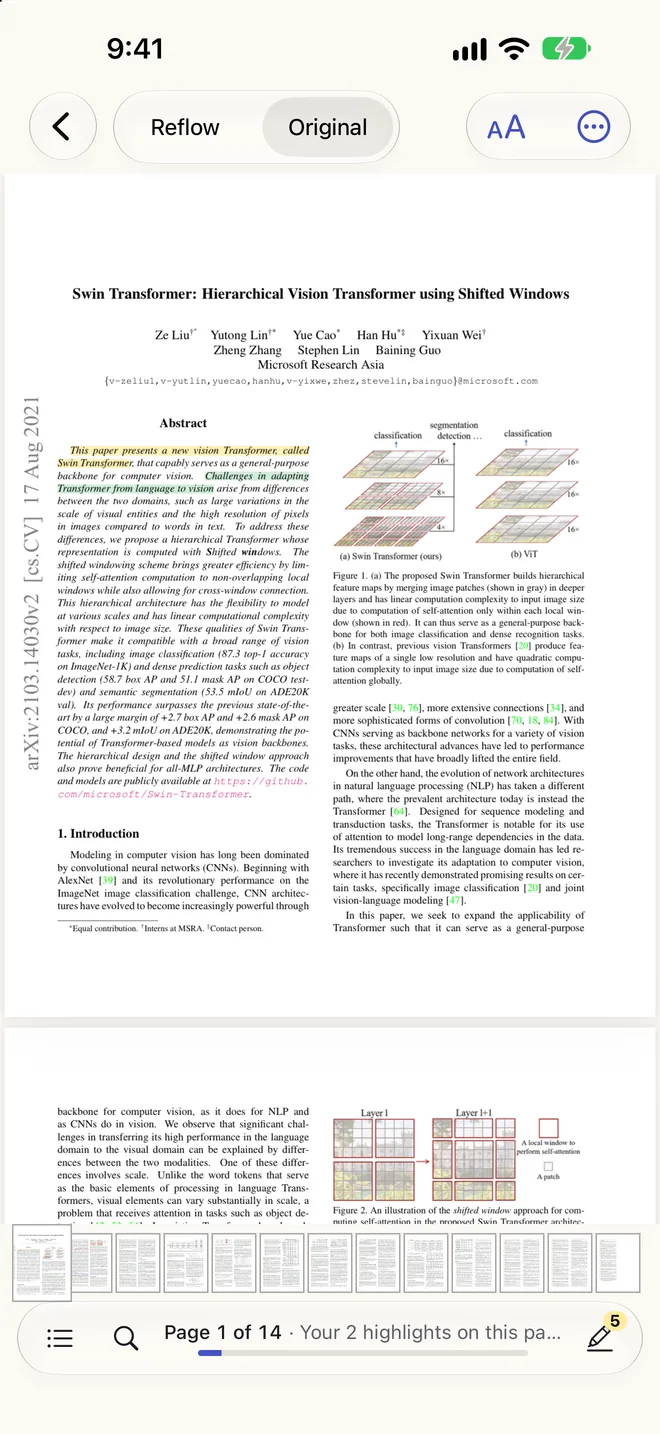
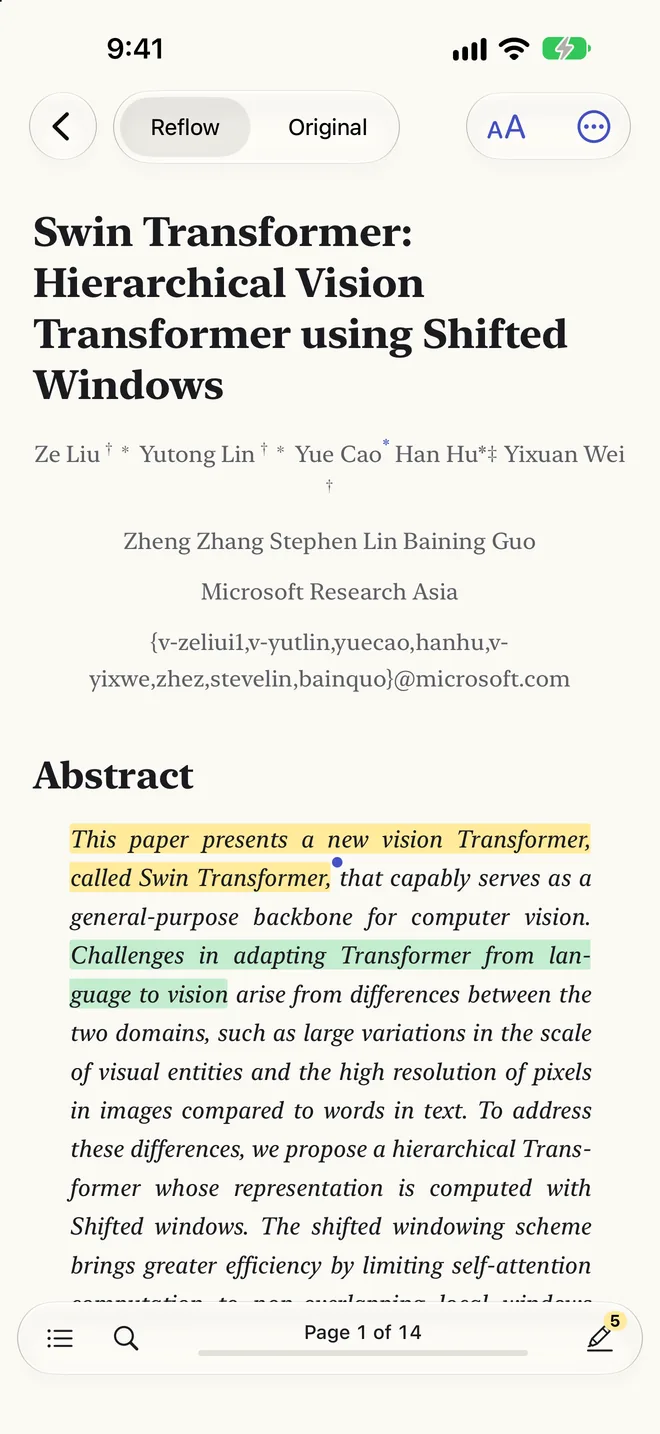
Reflowing takes the text out of the page and sets it again for your screen: one column, in the typeface and size you choose, wrapping at the edge like an e-book. Done well, it keeps what the page meant. Headings stay headings, a list stays a list, footnotes stay with their text, and the running heads and page numbers that repeat on every page are left out.
The hard parts are the things that aren't plain text. A table needs its rows and columns, an equation has to stay an equation, and a figure belongs next to its caption. Many tools that reflow PDFs flatten tables into lines of numbers and turn equations into scrambled symbols.
How to reflow a PDF with Unpage
- Get Unpage from the App Store. It's a PDF reader for iPhone, iPad and Mac, free for 3 new documents a week.
- Add the PDF. Tap + and choose a file from Files or iCloud Drive, open a link to a PDF, scan paper pages with the camera, or choose photos of pages. From another app, such as Mail or Safari, share the PDF and choose Unpage.
- Start reading. Within seconds the whole document reads as text. Unpage then converts it carefully, page by page, while you read: tables become real tables, equations become real math, and figures keep their captions. It all happens on your iPhone; nothing is uploaded.
- Make it comfortable. Tap the Appearance button to choose a theme (Paper, Sepia, Night or Match system), a typeface (New York, SF Pro or Atkinson Hyperlegible), the text size, line spacing and margins.
- See the original whenever you like. Tap a paragraph to see it outlined on the original page. Switch to Original to see the PDF as it was printed, or on iPad read both Side by Side.
Can you trust reflowed text?
Reflowing a PDF means reading the page, and reading can go wrong: a word misread, a line out of order. Unpage compares every passage with the PDF's own text and tells you when they agree. The few it can't confirm are marked in apricot and listed under To Check, so you know where to look.
If a passage did come out wrong, tap it and choose Fix this. You can read it again, change what it is (text, a table, an equation or a picture), show it as it is on the page, or edit the text. Your fix is kept, even if you convert the document again.
Tips for reading PDFs on iPhone
- Long documents: open Contents to jump between sections, and Search to find a word.
- Highlights: select text to highlight it in one of five colours and add a note. It shows on the original page too.
- Scanned PDFs: scans and photos of pages are read on the device too, and reflow like any other PDF.
- No connection: converting and reading need no internet, so a long flight is fine.
- Research papers: see how to read research papers on your phone.
- E-readers: to read the PDF on a Kindle, Kobo or in Apple Books, convert it to EPUB.
What you need
An iPhone or iPad with iOS 18 or later, or a Mac with Apple silicon and macOS 26. Converting tables and equations needs an iPhone 12 or later, or one of the iPads listed on the support page. On older iPhones and iPads the text still reflows, with tables and equations shown as pictures of the page.
Read your PDFs like an e-book
Unpage is free for 3 new documents a week. Unpage Pro adds as many as you like and EPUB export, for one price on iPhone, iPad and Mac.